Start Here
JewelBooks Walkthrough
Step-by-step guide for jewellery billing, stock, URD, schemes, reports, and backups.
- For shop owners and staff
- Use this before daily billing
- Works as a quick training video
Overview
1. Dashboard
Start every day from the Dashboard.
- Check total sales, purchases, URD, GST, and stock cards
- Use Today, This Month, or All date filters
- Open backup and guide reminders from the top
Billing
2. Sales Voucher
Create the customer tax invoice.
- Click Sales Voucher, then Add Sales Voucher
- Enter customer details, product details, weights, rate, and VA/labour
- Choose Cash, Bank, UPI, Card, Online, or Credit payment
- Save, print A4/thermal, or share on WhatsApp
Outstanding
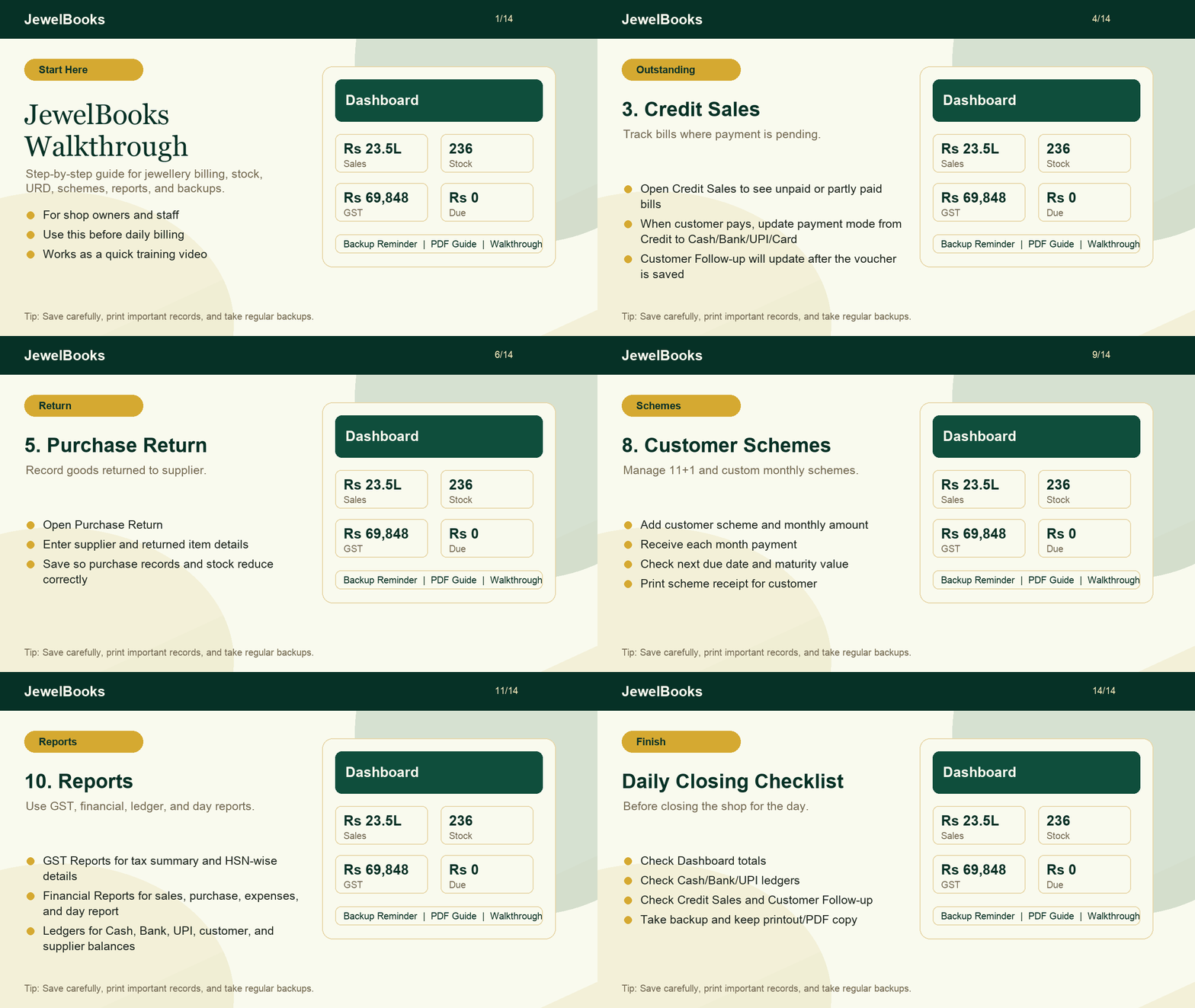
3. Credit Sales
Track bills where payment is pending.
- Open Credit Sales to see unpaid or partly paid bills
- When customer pays, update payment mode from Credit to Cash/Bank/UPI/Card
- Customer Follow-up will update after the voucher is saved
Stock In
4. Purchase
Enter supplier purchases and stock coming into the shop.
- Open Purchase, then Add Purchase
- Enter supplier, bill date, item, weight/qty, rate, GST, and total
- Save and verify stock display cards
Return
5. Purchase Return
Record goods returned to supplier.
- Open Purchase Return
- Enter supplier and returned item details
- Save so purchase records and stock reduce correctly
Old Metal
6. Gold URD / Silver URD
Record old gold and old silver exchange or purchase.
- Enter customer name, mobile, item, gross wt, net wt, purity, rate, and amount
- Check pure weight and average rate cards
- Print voucher with customer signature when needed
Inventory
7. Inventory / Stock
Manage items, QR tags, categories, purity, and rates.
- Add stock item or save from QR generator
- Use display card category such as Gold Ornaments 22K or Silver Articles
- Click display cards to see items inside
- Print selected QR tags when needed
Schemes
8. Customer Schemes
Manage 11+1 and custom monthly schemes.
- Add customer scheme and monthly amount
- Receive each month payment
- Check next due date and maturity value
- Print scheme receipt for customer
Follow-up
9. Customer Follow-up
Follow up dues, inquiries, repairs, orders, and schemes.
- Search customer by name or mobile
- Check due amount and pending work
- Use WhatsApp/call actions to remind customers
- Clear dues by updating the original voucher payment
Reports
10. Reports
Use GST, financial, ledger, and day reports.
- GST Reports for tax summary and HSN-wise details
- Financial Reports for sales, purchase, expenses, and day report
- Ledgers for Cash, Bank, UPI, customer, and supplier balances
Important
11. Backup & Restore
Protect your data regularly.
- Download JSON backup often
- Keep PDF/printout copy of important data
- Take backup before imports, restore, or bulk changes
- Store one copy outside the shop computer
Admin
12. Payment Settings
Admin controls for subscription, trial, activation, and GST voucher.
- Set one-time pricing and platform charges
- Extend trial when needed
- Activate registered users manually
- Generate GST voucher for JewelBooks subscription
Books
13. Accounting Master
Create and maintain the accounts behind your voucher entries.
- Create ledger groups, customer/supplier ledgers, Cash, Bank, and UPI ledgers
- Enter opening balances carefully before regular voucher entry
- Use receipt, payment, contra, and journal vouchers for entries outside sales and purchase
- Review Cash Closing and bank balances before day end
Books
14. Expense Voucher
Keep shop expenses separate and easy to review.
- Click Expense Voucher, then Add Expense
- Choose date, expense ledger, payment mode, amount, and note
- Use the correct Cash, Bank, or UPI ledger so reports remain accurate
- Review expenses in Financial Reports and Ledger Statements
Management
15. Customer Inquiry, Repair & Order
Use these sections to manage work before it becomes a sale.
- Customer Inquiry records customer interest, product requirement, and follow-up date
- Repair Voucher records received item, issue, estimate, advance, and repair status
- Order Voucher records ordered product, promised date, advance, and balance
- Use Customer Follow-up to check pending dues, repairs, orders, and enquiries in one place
Management
16. Karigar Management
Track jewellery work given to and received from karigars.
- Add each karigar with contact and basic details
- Record issue/receive date, item, weight, labour, and payment entries
- Check pending work and karigar balances before settlement
- Keep supporting notes for repairs, making, and exchange work
Settings
17. Business Profile, Appearance & System Settings
Set up the information that appears across your JewelBooks account.
- Business Profile stores shop name, address, GSTIN, mobile, email, and authorised signature for prints
- Appearance changes the dashboard theme only; it does not change saved vouchers
- System Settings controls invoice prefix, default GST, UPI invoice QR, thermal width, and voucher names
- Use WhatsApp Cloud API Settings only when you have your own Meta WhatsApp Business account
Admin
18. User Access, Devices & WhatsApp API
Admin-only controls help protect the account and manage subscriptions.
- Set staff permissions so each user sees only the menu areas needed for their role
- Approve, block, or remove registered devices for paid users
- Extend a trial or activate a registered user when required
- Each business can save its own Meta WhatsApp API Phone Number ID and permanent token to send invoice PDFs directly
AI Tools
19. AI Assistant, Bill Reader & Work Agent
AI prepares drafts. You always review before anything is saved.
- Open AI Assistant for daily summaries, business warnings and WhatsApp message drafts
- Voucher Photo reader: upload a bill photo and AI fills a draft sales or purchase voucher. Check every value against the photo, then save
- Work Agent (floating sparkle button): type or speak what you need, in English, Hindi or Kannada, and it opens the right report or prepares a draft
- AI never deletes records or changes saved calculations. Photos, voice and text sent to AI are processed by Google Gemini or Groq, see the Privacy Policy
- If AI is not set up or the daily limit is reached, the normal OCR and the standard commands still work
GST
20. GST Reports: B2B and B2C
Separate views of your sales for filing support.
- Open GST Reports, choose the month, then click B2B Sales or B2C Sales
- A sales voucher with a customer GSTIN is B2B. A voucher without a GSTIN is B2C
- Each tab shows invoice count, taxable value, total tax and invoice value, with CSV and Print / PDF
- GSTR-1 still lists every sale together. Always match values with the GST portal before filing
Share
21. Sharing Bills on WhatsApp
The WhatsApp button on vouchers works with or without Meta Cloud API.
- Without Meta: the button opens WhatsApp (Web on a computer, the app on a phone) with the customer number and bill text ready. Press Send
- With Meta Cloud API connected and enabled in System Settings: confirm the customer opted in and JewelBooks sends it directly using your approved templates
- Payment, scheme and order-ready reminder buttons follow the same rule
Finish
Daily Closing Checklist
Before closing the shop for the day.
- Check Dashboard totals
- Check Cash/Bank/UPI ledgers
- Check Credit Sales and Customer Follow-up
- Take backup and keep printout/PDF copy